 External video overlay
 Note: Video Overlay is no longer offically supported in Wincaps and has been replaced by Streaming support in 4.46.14.
If there is a requirement to use a Video Overlay card with Wincaps post 4.45.15, specifically Q-Live, please contact BroadStream Support and we can discuss the best solution.
In this article:

Overview
The last card that was tested with Wincaps was the BlackMagic Decklink Mini Recorder HD 3G card (see below for configuration instructions) running with drivers 15.1 or below in 4.45.15 on Windows 11.
Note: There is a known issue whereby the first time Video Overlay is selected from the Choose Media Type dialog window the video window remains blank. File Info>Media>Wizard must now be selected and when prompted as to whether to use the same video media, the answer is No and then Video Overlay should be selected again from the Choose Media Type dialog window.
Video Overlay supports the ability to display the picture from an external video source in the Video window. In order to do this, the host PC must contain a suitable graphics card capable of video overlay using a standard video input (i.e. VIVO).
If the PC contains a compatible card, Wincaps will detect it automatically and the option will be available whenever you go to open a video.
The procedure for using the overlay card is as follows:
-
Connect a suitable external video signal to the input of the overlay card.
-
In Wincaps Q4/Q-Live, open a file and choose a story (Q-Live).
-
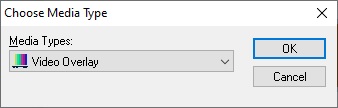
Click the video play button or press the 5 key on the numeric keypad to start the media. The Choose Media Type dialog is displayed:
-
Select Video Overlay from the drop-down list and click OK.
-
The external picture is displayed in the in the Video window after a short pause.
You can stop the external video input by right-clicking in the Video window and choosing Close from the pop-up menu.
Note that the control of external video sources is not part of Q4; the keyboard video playback controls are for digital media file only.
Note that when using Q-Live, you can use the Video overlay with some stories and media files with others as required. When you switch between stories, Q-Live loads the appropriate media file or displays the external overlay input as required.
Configuration
The configuration options can be found in the Toolbox under Media>Overlay Config

When the card has been installed on the PC the video and audio settings can be controlled from the 'Overlay Config' option:
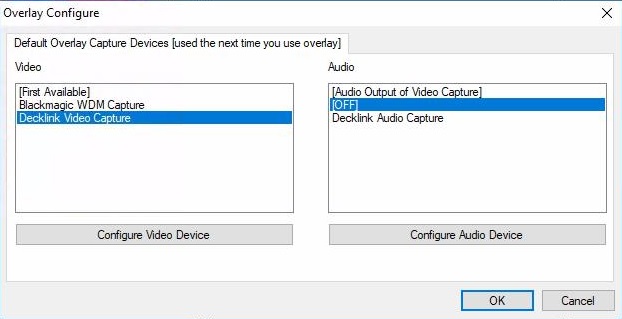
If the Audio option is OFF then there will be no audio in Wincaps.
If the card is selected then the 'Configure Video Device' and 'Configure Audio Device' takes you to the cards configuration settings.