 Streaming

Overview
Wincaps Q-Live and Q4 support stream types that rely on established professional streaming protocols, such as HLS, DASH and TS via the STREAMING button and options in Q-Live or via the media playback options in the Choose Media Type dialog window in Q4.
Currently, Wincaps only plays back the stream and the standard video control functionality, apart from starting and stopping a stream, is disabled.
Streaming supports replaces Video Overlay card support in Wincaps Q4 and Q-Live.
 Note: Streaming support in Wincaps is only supported in W11 operating system (OS) and is not supported on OS's any earlier, including W10.
Streaming in Q-Live
Streaming is selected in Q-Live via the  button.
The button toggles between the streaming selection and closing the stream. When the button is grey then Q-Live will support video media normally.
When the button is pressed, the Select URL dialog window will appear.

If a stream had previously been selected in any Story in an n32 file, the same stream URL will be reloaded.
The dropdown menu will permanently display any previously used stream URLs used in Q-Live.
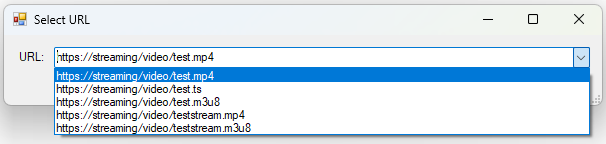
The Select URL dialog window can also be called using the File options...

..or via the shortcut Alt+Numpad 5.
When the stream URL has been pasted or typed in and OK has been pressed, the stream will be displayed in the video window and the  button will turn green.
When a stream is playing and the button is green, any associated videos will be disabled. The  icon will change to
For example, a file with three Stories all with videos associated - either manually or if using the Clip Monitor - looks like this when the button is grey:

When the button is green, the associated videos will look like this...
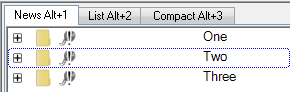
..and selecting any Story will only show the stream in the video window.
If a stream had previously been selected with an n32 file open, if the n32file is closed and then reopened, the same stream URL will be reloaded and any associated videos will be unavailable.
To return to video playback state, press the button, or close the stream via Alt+Numpad 5, or use File>Stream>Close.
Note: Using the right click option in the Video Window to 'Close Video' does not fully close the stream and this option is not recommended for use. See Known Issues.
The button will turn grey and the associated video will be shown in the video window and the icons will change to .
Streaming in Q4
Selecting or typing a stream in Q4 is done via the Choose Media Type dialog in the same way that a video is associated to a w32 file.
To open the dialog click the Toolbox->Info->File Info->Media->Wizard button, Numpad [5] or press Ctrl+Shift+W to launch the 'Choose Media Type' media wizard dialog. You can also use the right click menu in the Video Window. This launches the 'Choose Media Type' dialog.

Select MediaLooks MFormats Streaming to call the Select URL dialog window will appear.
When the stream URL has been pasted or typed in and OK has been pressed, the stream will be displayed in the video window.
If a stream had previously been selected with a w32 file open, if the file is closed and then reopened, the same stream URL will be reloaded.
The dropdown menu will permanently display any previously used stream URLs opened in Q4.
Streaming can be turned off by using the  in the Video Window controls or using the right click menu in the Video Window and selecting 'Close Video'.
You can also reload either a video or another stream using the Media Wizard button.
Note: There are no video controls for streaming playback in Wincaps.