Job Context Files
In this article:

A Wincaps Q4 file can be opened with a Job Context XML file which can be configured to open the video and helper files, load Customer and Programme templates and pre-load file paths for saving files and importing/inserting files. In some situations it can also be used to create the tcc timecode file or overwrite it with a zero start.

Job Context Tags
<video> This is the file path to the video including the video title.
<videoindexes> This the file path to the video helper files and does not require the media title.
NB: If the <video> and <videoindexes> tags are empty then Wincaps Q4 should use the path in Wincaps Q4 located under Configure>Default paths>Media for BOTH tags and load the media (video and helper files) that match the file title under <title> (it is probable that the file path will contain more than one video and/or helper files). If there is no video file or helper files that match the <title> then the W32 file will be created as normal and Wincaps Q4 will prompt ‘Choose Media Type’ to associate a file as it would when opening a new file.
<scripts> This is the file path displayed when using File>Import or File>Insert
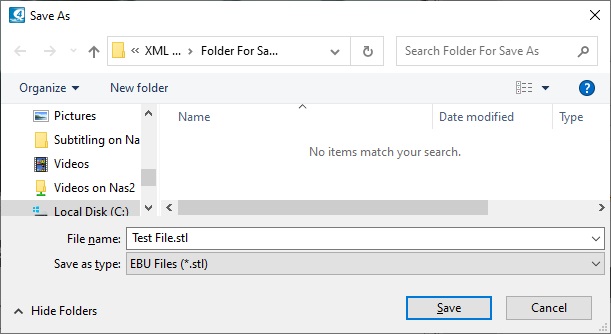
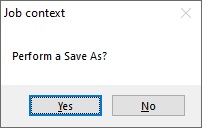
<saveto> Path that the first ‘Save to’ (from the ‘Perform a Save As’ prompt at the first opening of the W32 file with the XML file) is saved. If the tag is empty then there will be no prompt to ‘Perform a Save As'. This will also be the folder for exported files from Wincaps.
<title> This is only used if there is no <video> path. The value in the <title> tag will either be that of the video (see NB above) or if there is no matching video then the value here will be the name of the W32 file.
<seriesinfo> Not currently used, this should be NULL.
<programme> This is the programme template, taken from the Datastore.
<customer> This is the customer template, taken from the Datastore.
<voicemodels> Not currently used. Leave blank.
<language> Standard language code
<timecodestart> If there is no tcc file then any timecode value in this 'tag' (based on HH:MM:SS:FF) will become the tcc value for the video. If there is a tcc file then the only value that can overwrite the tcc file is 00:00:00:00
How To Work With A Job Context XML File
Here is an example of the format of a Job Context XML file.
<report>
<video>C:\XML Launch Test\Video\Diving Doris.mpg</video>
<videoindexes>C:\XML Launch Test\Helper Files</videoindexes>
<scripts>C:\XML Launch Test\Import Files</scripts>
<subtitles>C:\XML Launch Test\Main Subtitle Storage Folder</subtitles>
<saveto>C:\XML Launch Test\Folder For Save As</saveto>
<title></title>
<seriesinfo>NULL</seriesinfo>
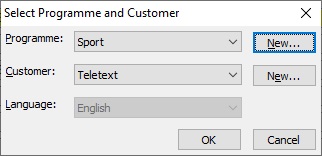
<programme>Sport</programme>
<customer>Teletext</customer>
<voicemodels></voicemodels>
<language>09</language>
<timecodestart>00:00:00:00</timecodestart>
</report>
This file will be titled 'Diving Doris' and will load the video automatically and overwrite the tcc file as 00:00:00:00.
When opening the XML file, the Select Programme and Customer dialog will be loaded with the information in the Job Context file:
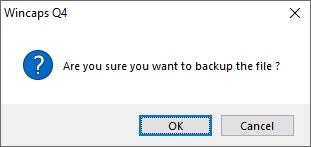
The file will also offer the option to perform a save as:
When the file is open using File>Import or File>insert the path specified in the Job Context file will be used:

Any export will also use the path specified in the Job Context File: